
Sign in and password
Screenshots in the console guide show the Thai interface; the English labels are given in bold.
Sign in
Section titled “Sign in”-
Open https://portal.finixpay.app in a current version of Chrome, Edge, Safari or Firefox.
-
Enter Email and Password, then click the sign-in button.
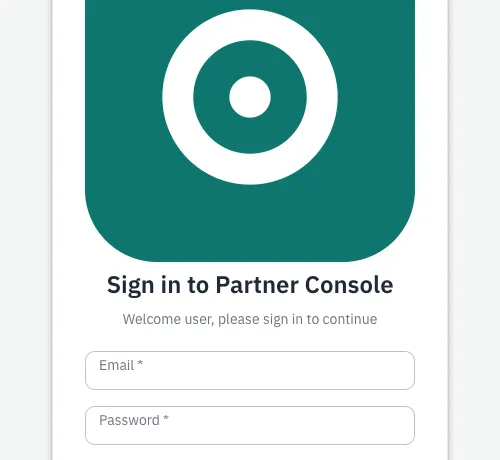
-
If 2FA is on, enter the 6-digit code from your authenticator app. See 2FA.
Your session belongs to the browser tab. If you close the tab or open the console in a new tab, sign in again.
Forgot your password? There is no self-service reset. Contact support from your registered email.
Change your password
Section titled “Change your password”Open Profile from the user icon at the top right. Under Change password enter the Current password, New password and Repeat new password, click Update password, then Confirm.
The new password needs at least 8 characters with lower case, upper case, a digit and a symbol (!@#$%^&*_-+=). Changing it signs out your other sessions.
Language and log out
Section titled “Language and log out”Switch language with the language button at the top right. To log out, click the user icon and choose Log out.