
Two-step verification (2FA)
With 2FA on, every sign-in also needs a 6-digit code from an authenticator app (Google Authenticator, Microsoft Authenticator, 1Password, Authy and similar). All users should turn it on.
Turn on 2FA
Section titled “Turn on 2FA”-
Open Profile from the user icon and click Turn on 2FA.
-
Scan the QR code with your app, or copy the key under Can’t scan? Enter this key instead.
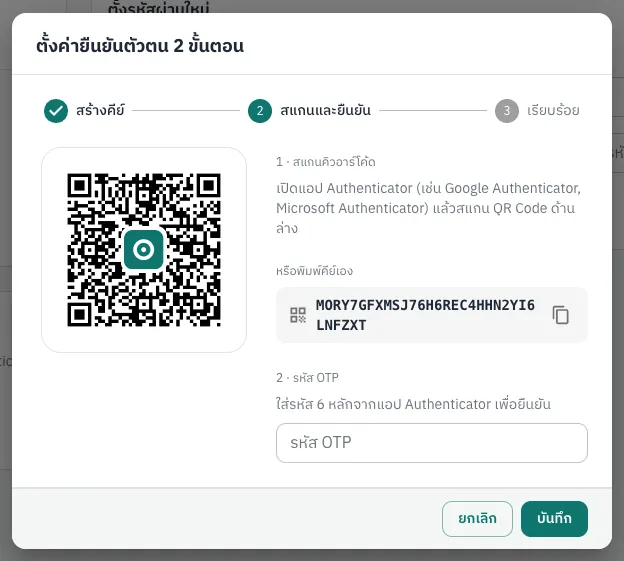
-
Enter the 6-digit code in the OTP field and click Save.
-
When you see 2FA is now on, click Close.
Signing in with 2FA
Section titled “Signing in with 2FA”After your email and password, the Confirm it’s you page asks for the code. Enter it and click Confirm.
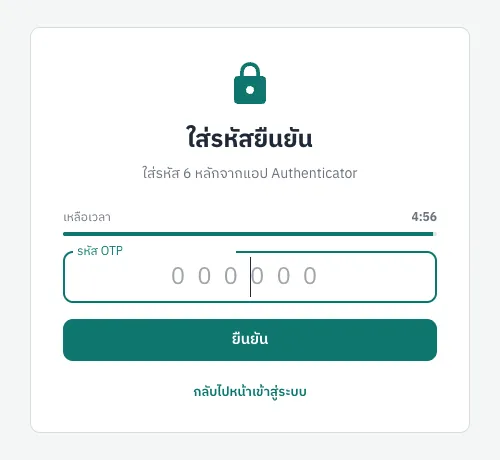
- You have 5 minutes (Time left); after that you return to the sign-in page.
- Each code works once; wait for the next one if you just used it.
- After more than 5 wrong codes you see “Too many wrong codes. Try again in …” and must wait (1 minute, rising to 15 minutes).
Turn off 2FA, or lost phone
Section titled “Turn off 2FA, or lost phone”To turn it off, click Turn off 2FA in Profile and enter a current code. If you lost your phone and have no key, contact support. Only the provider can reset 2FA; a partner owner cannot reset it for team members.